

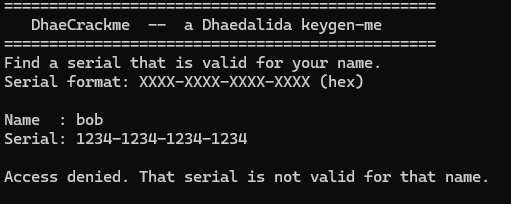
Difficulty: ?/10 (I will let you guys decide but it's definitely not for beginners)
Language: C++
Platform: Windows
OS Version: Tested on Windows 11 64-bits
Protection: Dhaedalida 1.0.0.2 (Custom Packer + Custom VM + anti-debug + anti-tamper)
Description
Hi all,
I have always been a big fan of software protectors specially those with obfuscation / virtual machine features like Themida / VMProtect among others so after a long time I've decided to make a new one and I'd like to see how it holds up against people who actually know what they're doing so here's a small keygenme protected with it. Genuinely curious about your feedback and I am looking forward for your write-ups.
The VM is not a traditional one like Themida / VMProtect (neither like my old VM posted here 10 years ago, wow time flies) but something else that I read on a paper and I wanted to implement some ideas of it and more I would like in the future (I'm not going to say more as to not spoil the fun).
Goals
Bronze: Unpack & patch it so every username / password will be accepted.
Silver: Generate a working username & serial pair.
Gold: Generate a fully working keygen for any username.
SHA-256 (.exe): 686414068984BAF182AB7F5FCCF91EC49CADB76BEE9AFBFA6C4E728C22A32112
Have fun and please share your findings.
Holy
Recommended Comments