

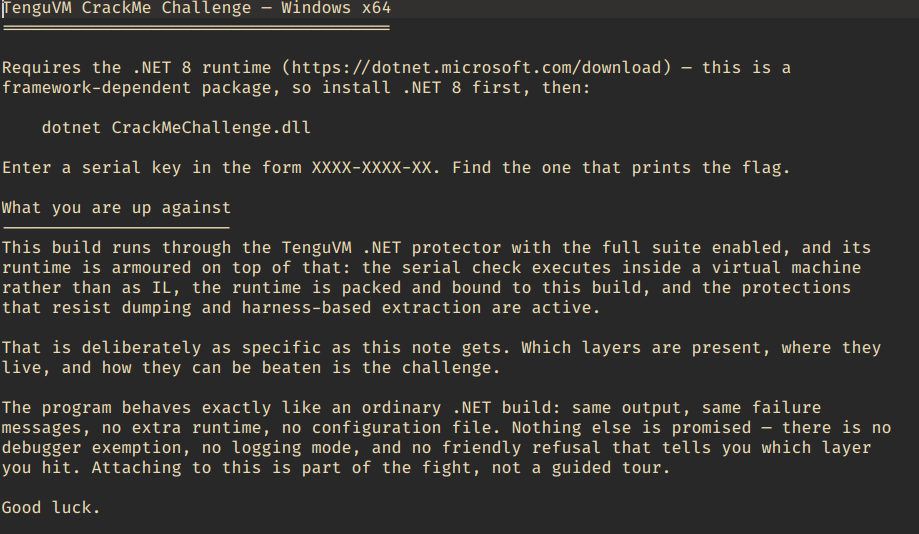
TenguVM UnpackMe Challenge — Windows x64
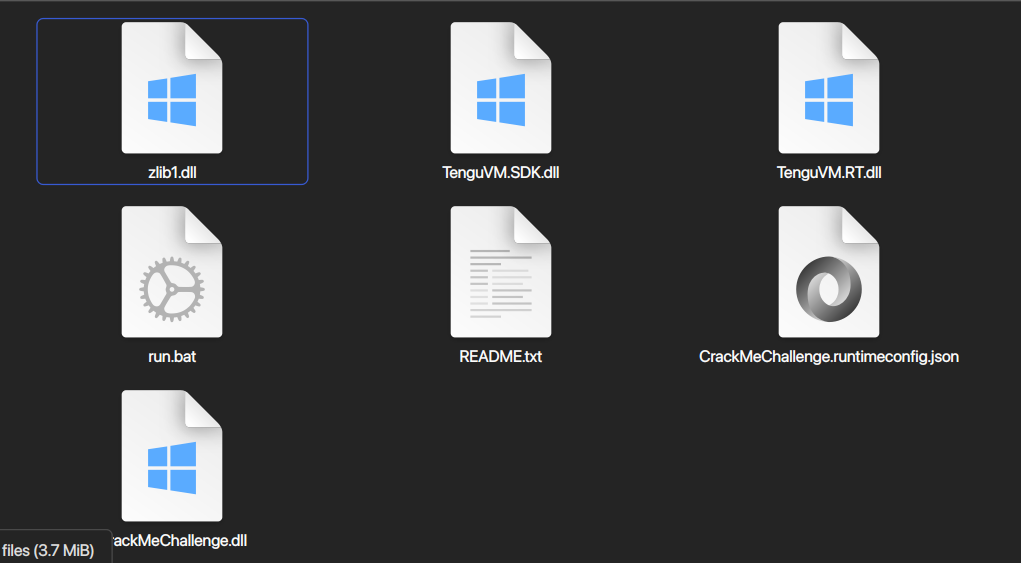
Requires the .NET 8 runtime (https://dotnet.microsoft.com/download) — this is a framework-dependent package, so install .NET 8 first, then:
dotnet CrackMeChallenge.dll
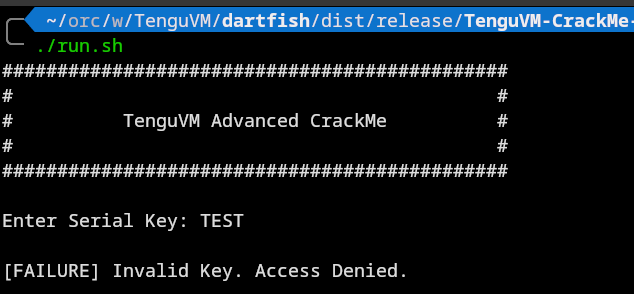
Enter a serial key in the form XXXX-XXXX-XX. Find the one that prints the flag.
What you are up against
This is primarily an Unpackme Challenge!
This build runs through the TenguVM .NET protector with the full suite enabled, and its runtime is armoured on top of that: the serial check executes inside a virtual machine rather than as IL, the runtime is packed and bound to this build, and the protections that resist dumping and harness-based extraction are active. That is deliberately as specific as this note gets. Which layers are present, where they live, and how they can be beaten is the challenge.
The program behaves exactly like an ordinary .NET build: same output, same failure messages, no extra runtime, no configuration file. Nothing else is promised — there is no debugger exemption, no logging mode, and no friendly refusal that tells you which layer you hit. Attaching to this is part of the fight, not a guided tour.
Good luck.
Edited by 0xNOP
specify it's an unpackme challenge and changed the wording to unpackme
What's New in Version 11/19/2026 02:07 PM
Released
Added new image
Recommended Comments