

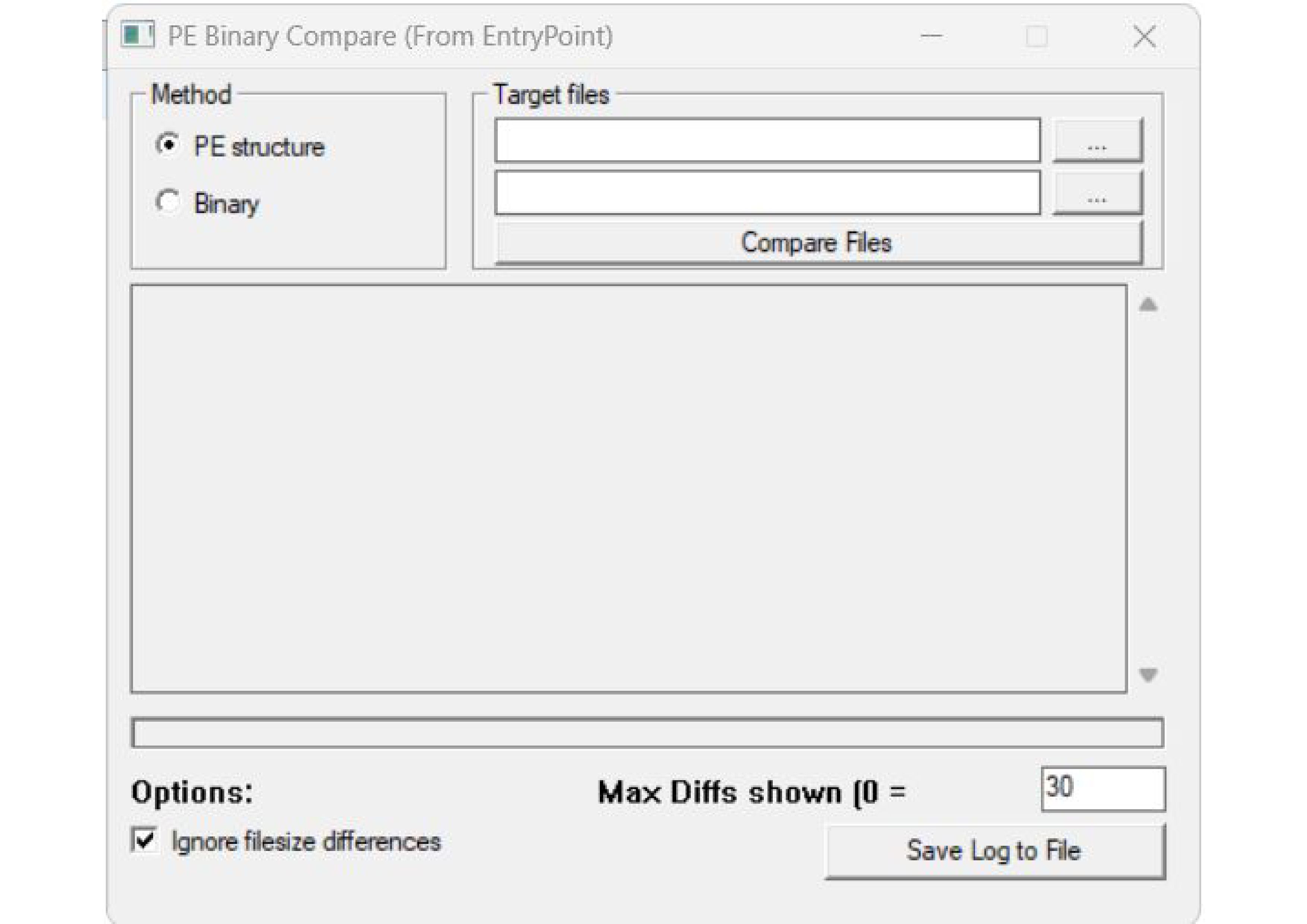
What does the tool do?
The program is a graphical Windows application (Win32 GUI) for the byte-accurate comparison of two executable files (e.g. B. .exe or .dll).
The special feature of this is that the binary comparison does not start at the beginning of the file, but at the respective entry point (entry point) of the program code. This allows modifications or patches to be detected in the executable code, even if the file sizes or header metadata differ fundamentally from each other.
Core functions & features
⚙️ Intelligent PE header analysis: The tool automatically detects whether it is a 32-bit (PE32) or 64-bit (PE32+) Windows file. It reads the virtual address of the Entry Point (AddressOfEntryPoint) and translates it to the real file offset on the hard drive.
🔍 Synchronized byte comparison: After the offset calculation, the tool jumps exactly to the code start point in both files and compares bytes for byte (via a high-performance file loop) from there.
📏 Ignore size differences: Enable the option “Ignore filesize differences”, the tool compares the data until the shorter of the two files reaches its end. A difference in size therefore does not lead to a premature termination.
📝 Detailed error log (log): Deviations found are output directly in the UI. The tool shows the relative offset (from the entry point) and the absolute offset for both files separately, including the different hex values (e.g. B. 0x90 ! = 0xCC). To keep the log readable, the maximum of the first 30 Differences listed.
-
 1
1
Recommended Comments
Create an account or sign in to comment