

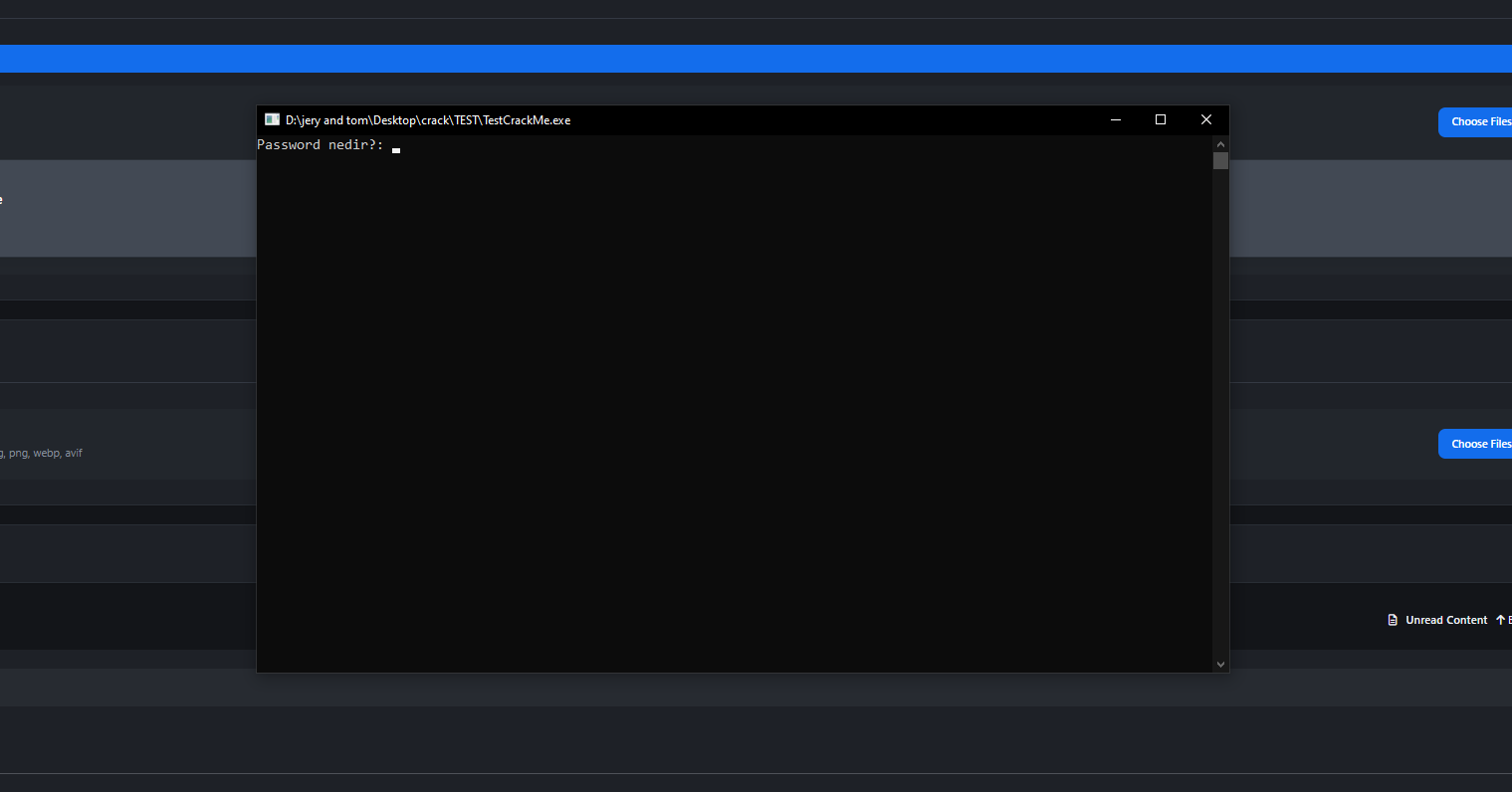
GUYS HELP ME
I am currently working on a CrackMe challenge and could use some guidance on how to approach its protection and debugging.
Challenge Requirements:
Find the password embedded in the program to retrieve the correct flag.
Features: Custom VM, Custom Anti-Debug, Custom Anti-Tamper, and Custom CRC Check.
Detect It Easy (DIE) Scan Results:
File Name:
TestCrackMe.exeFile Size: 12.85 MB
Type: PE64 (AMD64, 64-bit Console)
Compiler/Language: Microsoft Visual C++ (C++) with dynamic Runtime
Protector: VMProtect (new) [DS, packed]
Heuristics detected:
Strange sections + Strange exports
Section #6 (
.B/R) is compressedSection #0 (
.text) has an incorrect offset and size
Observed Behavior (Anti-Debugging / Execution Trick): When launching the executable, it performs a tricky sequence:
It immediately spawns a
cmd.exewindow.That window quickly closes itself.
A second, separate
cmd.exewindow opens, presenting the prompt:Password nedir?:(Turkish for "What is the password?")
Because of this process spawning and the VMProtect packing, I am having trouble attaching a debugger (like x64dbg) directly to the active prompt process.
I Tried ScyllaHide he work at first but then TestCrackMe.exe giveme error 0x31 detected
can some one crack it or help me
Recommended Comments