


This is a recently developed recreational utility. I'm unsure which forum section is appropriate, so moderators please feel free to move it if necessary.
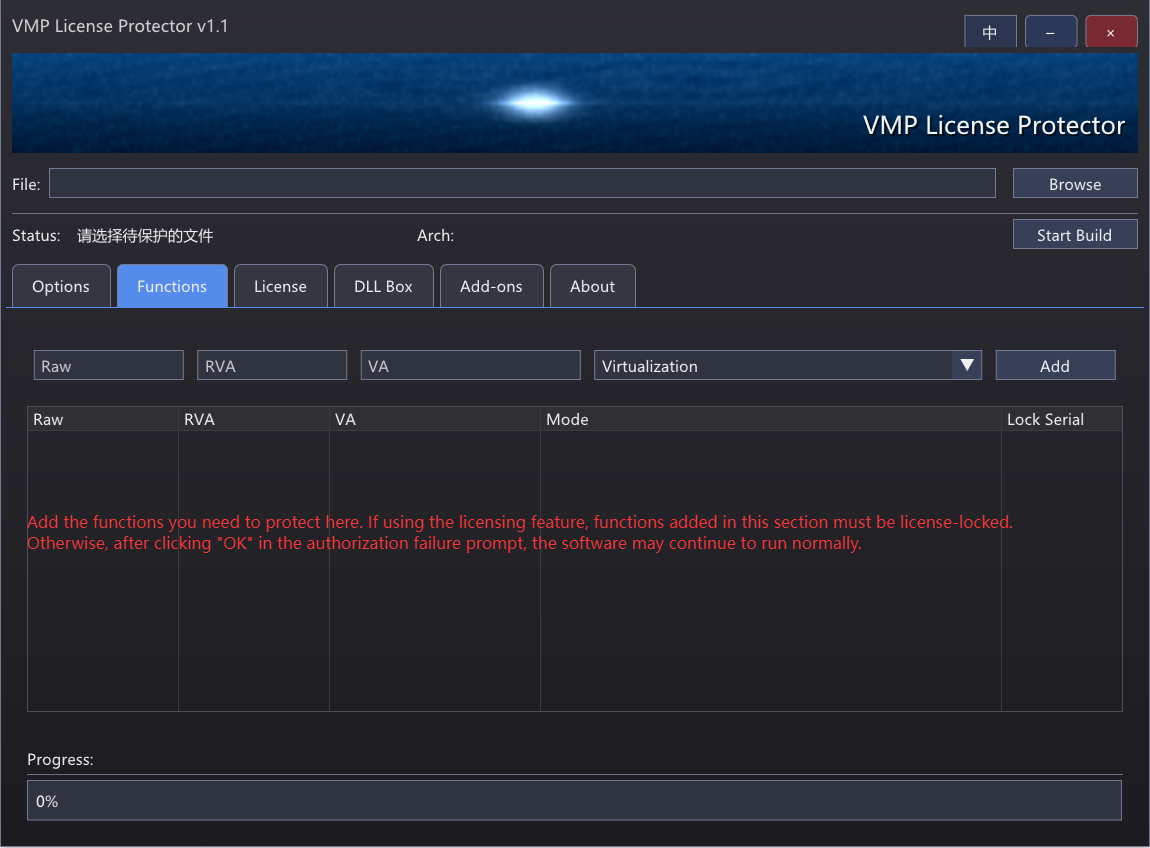
The tool implements a combined The Enigma and VMProtect protection scheme and is designed for applying VMProtect to Win32/Win64 executables and DLLs without requiring source code. It is not compatible with .NET assemblies.
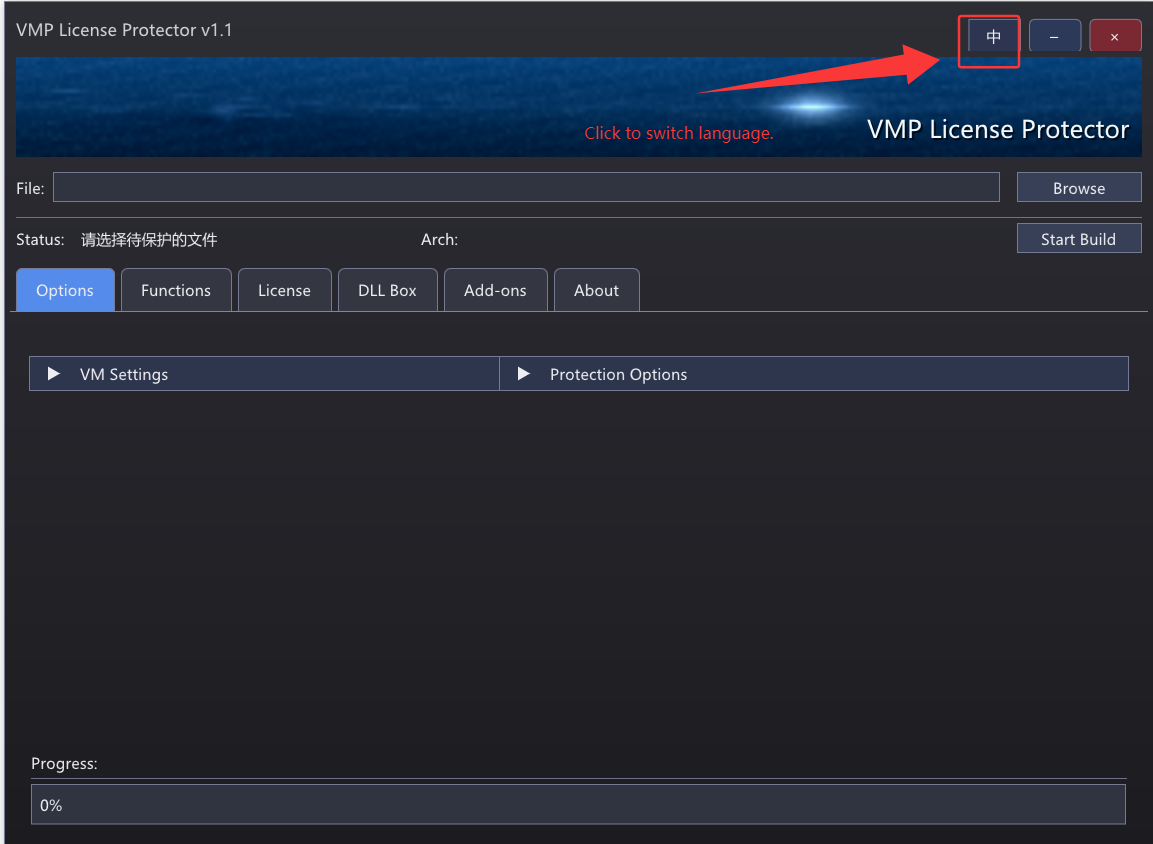
The interface supports Chinese/English language switching. To function, VMProtect_Con.exe must be placed in the tool's directory. Note that the tool itself is incompatible with Windows 7 and requires the DirectX 11 runtime to be installed. Software protected with it remains compatible with Windows XP/7/10.
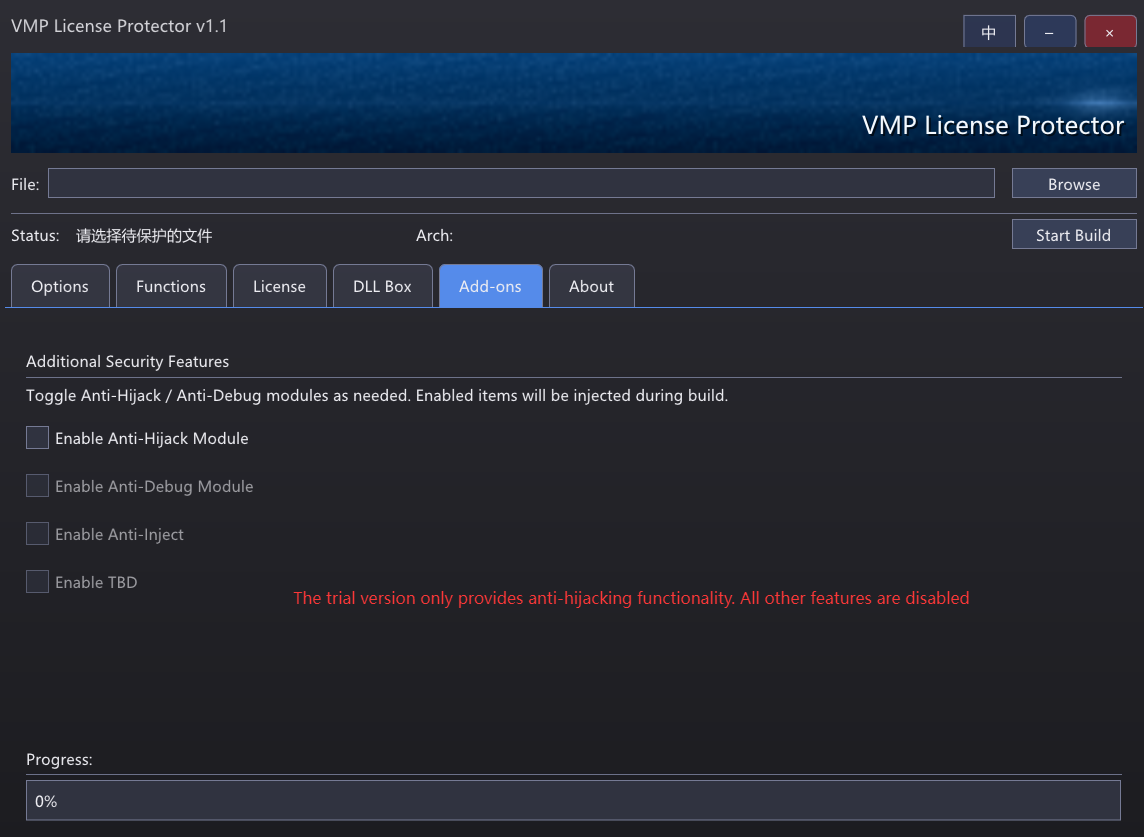
Trial Version Limitations:
Only the anti-hijacking feature is enabled.
All other functions are disabled.
Uses a fixed RSA key.
Please do not use it to protect commercial software.
While some features are disabled, the tool may be sufficient for users with modest needs if patched. The trial license expires after one month, but functionality can be extended through patching.
Archive Password: View by double-clicking the RAR file in WinRAR (check archive comment) or use: tuts4you.
Edited by Teddy Rogers
Clarified where to find the password and highlighted in bold...
What's New in Version 01/15/2026 08:01 AM
Released
Fixed the anti-hijacking bug, updated the files, and included a usage video.
Recommended Comments