


Hey,
Dropping my second UnpackMe challenge, made just for fun. This one’s a bit tougher than my first, but still very doable. The goal is to unpack and analyze the binary and reach the success message. Cracking it is extra, not required.
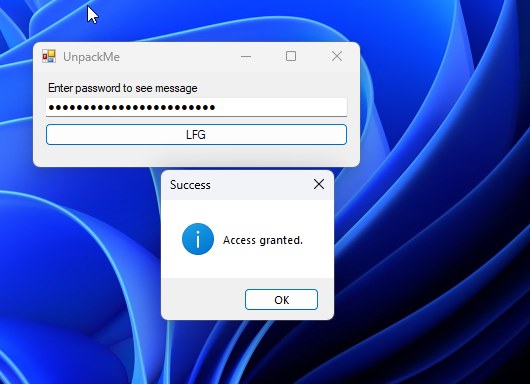
It’s a simple .NET WinForms app that asks for a password and shows “Access granted” when the condition is met. The UI is trivial, the focus is on what’s happening once protections kick in.
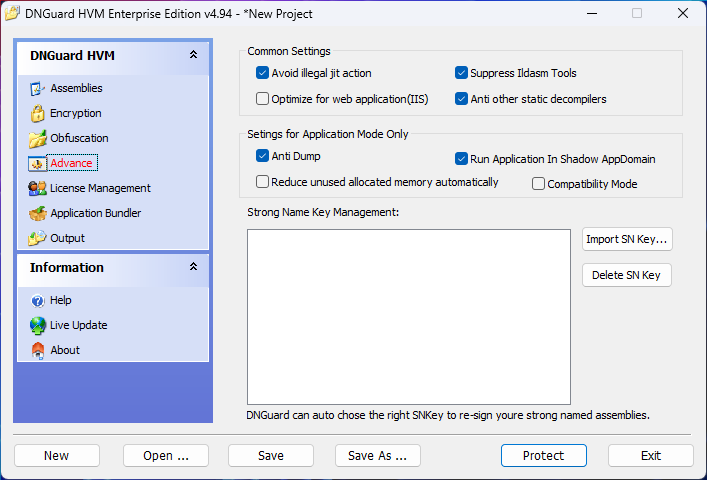
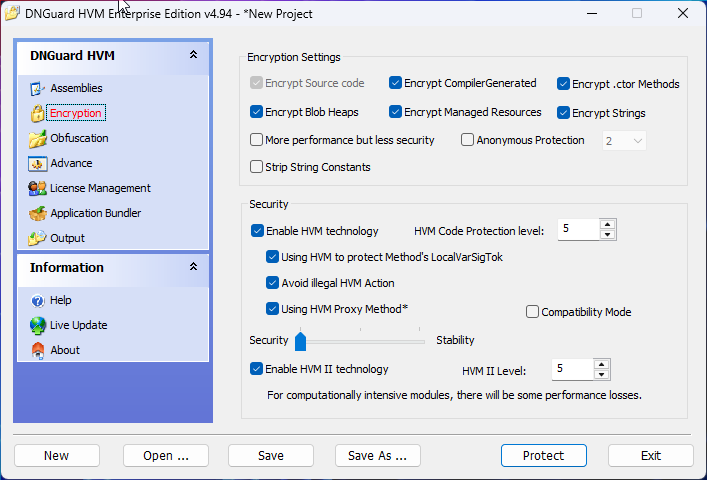
Protected with DNGuard HVM Enterprise. Source code, compiler-generated code, constructors, strings, managed resources, and blob heaps are encrypted. HVM and HVM II are both enabled at level 5, with proxy methods and additional runtime protections. Metadata is obfuscated, name heaps are destroyed, automatic renaming and dynamic control flow obfuscation are enabled, and basic anti-dump and anti-static measures are in place.
The password is not stored in plaintext. Verification is done against a SHA-256 hex hash (PasswordSha256Hex). If you want to reverse or bypass that, that’s the crack portion and optional.
Screenshots show the app and protection settings used.
Recommended Comments